
SIM Card Not Working? 17 Causes & Quick Fixes
SIM Card Not Working: Do you see such messages on your phone as “No Service”, “No SIM”, “SIM Not Detected” or “Emergency Calls Only”? The problem is not necessarily that your SIM card is defective.
There may be the following reasons for this: a damaged or dirty SIM card, network outage, wrong settings, inactive account, software problem or phone compatibility.
Read Also: How to Reactivate a Blocked SIM Card: Complete Guide 2026
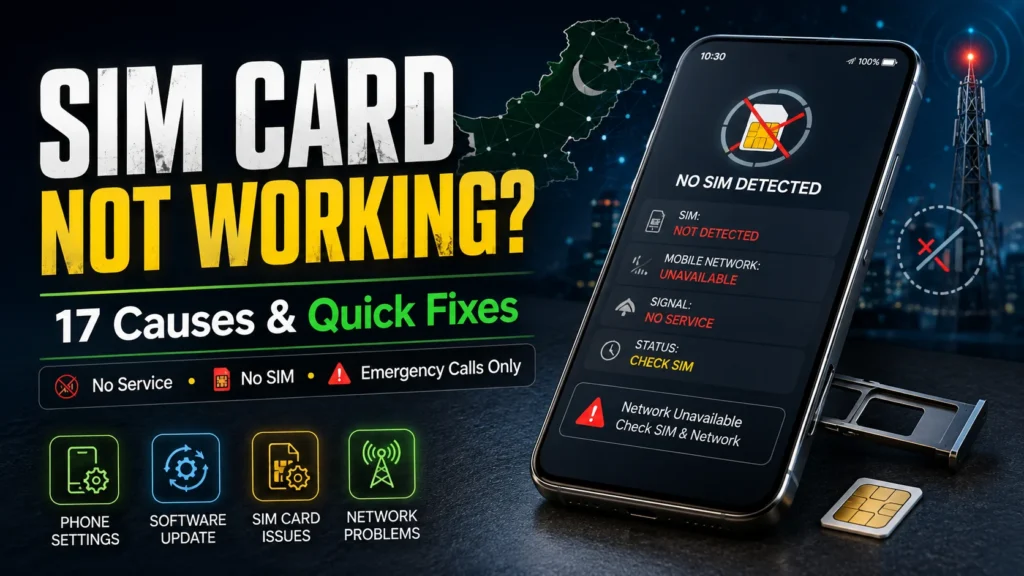
Try solutions below before you think about buying a new SIM card. In most cases you will be able to fix the error in a few minutes.
Check: Sim Owner Details Pakistan
SIM Card Not Working: Quick Fixes
Try these solutions first:
- Restart your phone.
- Turn Airplane Mode on for 15–30 seconds, then turn it off.
- Remove and correctly reinsert the SIM.
- Clean the SIM contacts with a dry, soft cloth.
- Check the SIM tray for damage or debris.
- Turn on automatic network selection.
- Install available phone software updates.
- Check carrier settings on iPhone.
- Test the SIM in another compatible, unlocked phone.
- Reset network settings if necessary.
- Check your account and service status.
- Contact your carrier if the SIM remains inactive.
Why Is My SIM Card Not Working?
Here are the 17 most common causes:
- SIM is loose or incorrectly positioned
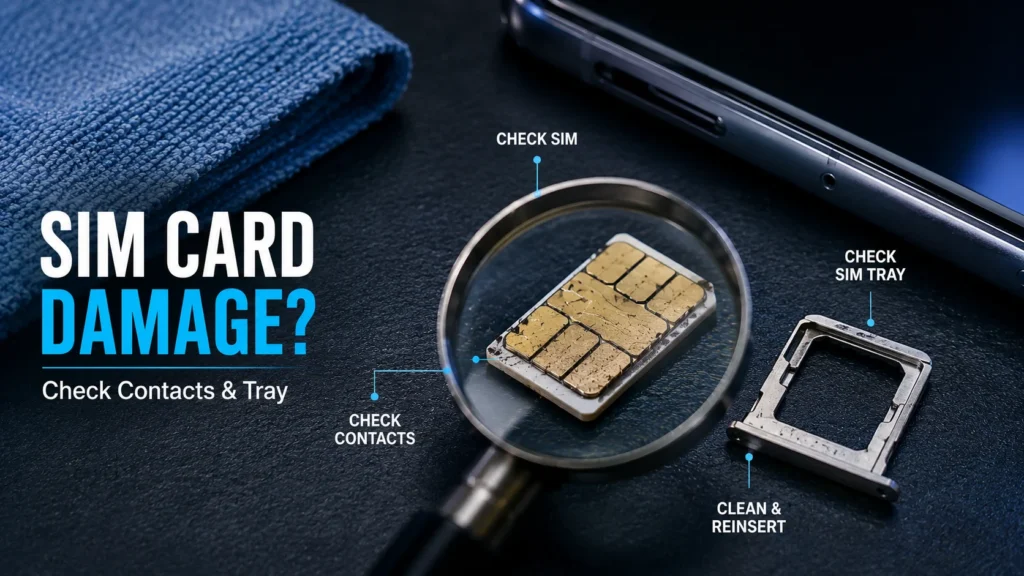
- Dirty SIM contacts
- Damaged SIM card
- Damaged SIM tray
- Faulty SIM reader
- Temporary network outage
- Temporary network registration problem
- Incorrect network selection
- Outdated phone software
- Carrier settings problem
- Incorrect network configuration
- Suspended or inactive account
- Carrier-locked phone
- Phone compatibility problem
- Mobile-data or APN problem
- SMS service problem
- eSIM activation or profile issue
Let’s look at how to identify and fix each problem.
1. SIM Is Not Sitting Correctly
Physical SIM cards should be inserted in such a way that they make contact with the reader inside the phone. If the card is not placed correctly or does not sit properly, “No SIM” or “SIM Not Detected” error appear.
Fix
Switch off the phone, remove the SIM tray, check the location of the card, and insert it in the correct place. Make sure that the phone SIM tray is placed correctly in the slot.
2. Dirty SIM Contacts
Some smartphones equip with a SIM card reader that is highly sensitive and cannot get rid of the dust, fingerprints, or any other foreign matter on the card. As a result, the reader fails to recognize the SIM card.
Fix
Turn off the phone and remove the card. Wipe the SIM card contacts with a dry microfiber cloth to get rid of the dirt on the gold-colored contacts. Do not use water or any other liquid household solutions.
3. SIM Card Is Damaged
The card itself may be defective or damaged due to a variety of reasons including bending, cracking, liquid exposure, corrosion, and more.
Check for:
- Cracks or bends
- Broken edges
- Corrosion
- Deep scratches
- Damaged contact areas
If the SIM fails in another compatible phone, contact your carrier about a replacement.
4. SIM Tray Is Damaged
A faulty or damaged tray will not allow the SIM to make contact with the reader.
Make sure the tray is not bent or broken and make sure that the tray closes completely. Try another SIM and if the same issue persists, bring your phone in for service
5. SIM Reader Is Faulty
Your phone’s SIM reader could be faulty for a number of reasons, but most commonly due to damage or dust buildup.
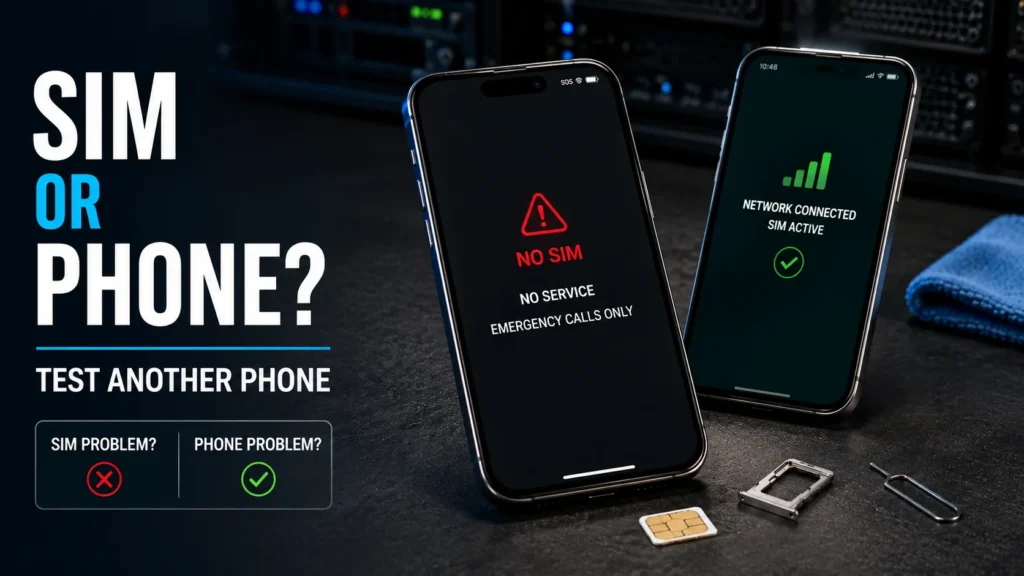
The easiest way to test this is to test your SIM in another unlocked phone.
If the SIM works in another phone, your original phone is faulty.
6. There May Be a Network Outage
Your SIM may be perfectly fine while your carrier is experiencing a temporary outage.
Possible causes include:
- Tower problems
- Maintenance
- Local service interruption
- Network congestion
If other people using the same network nearby also have no service, an outage is more likely.
7. Your Phone May Have Lost Network Registration
There might be a problem where your phone can see your sim card but it just wont connect to your carrier.
Quick fix
Turn on airplane mode for about 15-30 seconds then turn it off again. If that does not work, try restarting your phone.
8. Incorrect Network Selection
If your phone is manually connected to an unavailable network, cellular service may not work.
On many Android phones, look under:
Settings → Network & Internet → SIMs → Network
On iPhone:
Settings → Cellular → Network Selection
Enable Automatic network selection when available.
9. Phone Software Is Outdated
Software bugs can sometimes affect cellular connectivity.
iPhone
Settings → General → Software Update
Android
Usually:
Settings → System → Software Update
The exact menu can vary by manufacturer.
10. Carrier Settings Need an Update
iPhones may receive carrier configuration updates that improve network compatibility.
Go to:
Settings → General → About
Stay on the screen briefly. If a carrier update is available, iPhone may show a prompt.
11. Network Settings Are Incorrect
Incorrect network configuration can prevent calls, SMS, or mobile data from working properly.
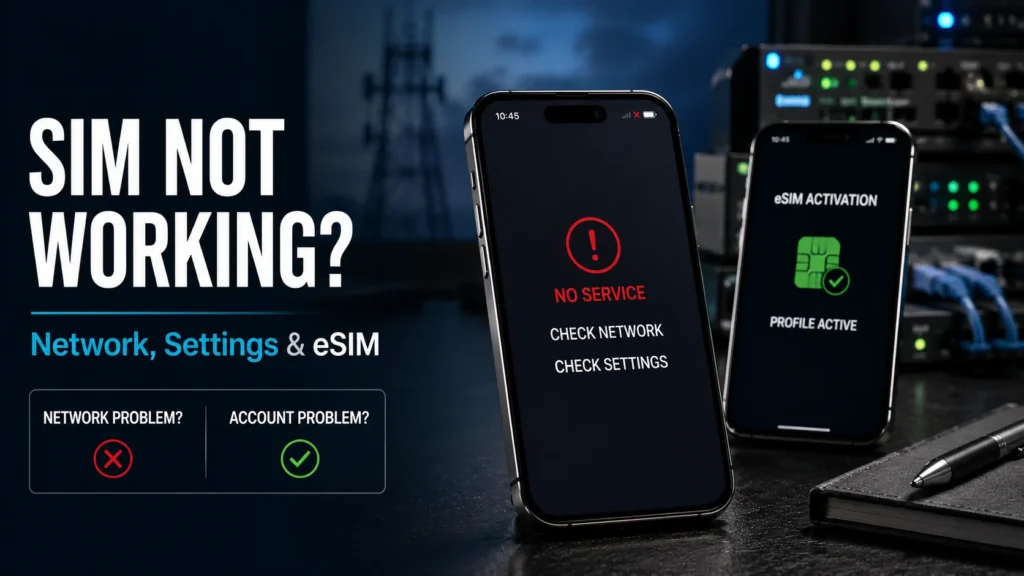
If basic troubleshooting fails, consider resetting network settings.
iPhone
Settings → General → Transfer or Reset iPhone → Reset → Reset Network Settings
Android
The option varies by manufacturer and may appear under:
Settings → System → Reset Options
A network reset normally does not delete your photos or apps, but it can remove saved Wi-Fi passwords, Bluetooth connections, and other network settings.
12. Your SIM or Account May Be Suspended
Your phone can detect the SIM while cellular service remains unavailable because of an account problem.
Possible reasons include:
- Suspended service
- Inactive number
- Verification issue
- Security restriction
- Carrier-side blocking
Contact your mobile operator and ask them to confirm that your number and SIM are active.
13. Your Phone May Be Carrier-Locked
An imported or previously carrier-specific phone may be locked to a particular network.
If your SIM works in another phone but not yours, check whether your phone is:
- Network unlocked
- Compatible with your carrier
- Supported in your region
14. Your Phone May Not Be Compatible
Some phones may not support the network bands, technologies, or carrier requirements used in your region.
This can happen with certain imported devices.
Check your phone model’s network compatibility and confirm with your carrier if necessary.
15. SIM Works but Mobile Data Doesn’t
If calls and SMS work but mobile internet doesn’t, the SIM itself may be fine.
Check:
- Mobile data is enabled.
- The correct SIM is selected for data.
- Your data package or balance is available.
- Network mode is appropriate.
- APN settings are correct.
- Data roaming is enabled only when required.
Don’t replace the SIM just because mobile data isn’t working.
16. Calls Work but SMS Doesn’t
If calls work but SMS doesn’t, the SIM is probably still functioning.
The problem may involve:
- SMS service restrictions
- Messaging configuration
- Temporary carrier problems
- Network registration
Restart the phone first. If SMS still fails, ask your carrier to check SMS service on your number.
17. eSIM Activation Failed
If you’re using an eSIM, the problem may be related to activation or the digital SIM profile rather than a physical card.
Check whether:
- The eSIM was activated successfully.
- The correct eSIM line is enabled.
- Your carrier supports eSIM on your device.
- The mobile plan is active.
If activation continues to fail, contact your carrier.
Read Also: The Future of eSIM in Pakistan: Virtual SIM Registration, Activation & PTA Guide
SIM Card Not Working in Pakistan
If you’re using Jazz, Zong, Ufone, or Telenor, first determine whether the issue affects your SIM or the network.
Before visiting a franchise, try:
- Restarting the phone.
- Reseating the SIM.
- Testing it in another phone.
- Checking whether other users on the same network have service.
- Confirming that your number is active.
- Contacting your operator if the problem continues.
If your SIM fails in multiple compatible phones while your account is active, ask your operator about a SIM replacement.
How Do I Know If My SIM Card Is Bad?
A SIM may be faulty if:
- It repeatedly shows “No SIM.”
- It works intermittently.
- It fails in multiple compatible phones.
- Calls and SMS stop working.
- Your carrier confirms the account is active but the SIM still cannot connect.
The second-phone test is one of the easiest ways to separate a SIM problem from a phone problem.
How to Check a Damaged SIM
Turn off your phone and remove the SIM carefully.
Look for:
- Cracks
- Bends
- Corrosion
- Damaged plastic
- Deep scratches
- Excessive contact wear
Do not attempt to repair a cracked or badly damaged SIM. Ask your carrier for a replacement.
Can an Old SIM Card Stop Working?
Yes, an old physical SIM can eventually become unreliable. However, age isn’t always the cause.
Before replacing it, test the SIM in another phone and ask your carrier to verify its status.
Should You Factory Reset Your Phone?
No—not as a first step.
A factory reset deletes personal data and should only be considered after you’ve ruled out the SIM, network, account, and hardware.
Always back up your data before performing a factory reset.
When Should You Replace Your SIM?
Consider replacing the SIM when:
- It fails in multiple compatible phones.
- Your carrier confirms your account is active.
- Another SIM works correctly in your phone.
- The physical SIM is damaged.
- Your carrier confirms the SIM itself is defective.
Your carrier can determine whether you need a replacement SIM or another account/service update.
Physical SIM vs eSIM
An eSIM uses a digital mobile profile instead of a removable plastic card.
eSIM advantages
- No physical card to lose
- No SIM tray required
- Convenient on compatible dual-SIM phones
- Useful for supported international plans
However, eSIM availability depends on your phone, carrier, country/region, and mobile plan.
SIM vs Phone: Quick Diagnosis
| Test | Most Likely Explanation |
| SIM works in another phone | Original phone may have the problem |
| SIM fails in two phones | SIM or carrier account may be responsible |
| Another SIM works in your phone | Original SIM is more likely faulty |
| Several users have no signal | Network outage may be responsible |
| Calls work but data doesn’t | Check data settings/account |
| Phone says “No SIM” | Check SIM, tray, contacts, and reader |
| “Emergency Calls Only” | Check coverage and network registration |
Conclusion
Instead of blaming the defectiveness of your SIM card, it is a good idea to try a few tricks to revive it. Firstly, you should restart your phone, turn on the airplane mode, remove your SIM card, and reinsert it to check the settings. Secondly, you can try using a reliable friend’s phone to find out whether it is working or not. If it is working, you have to check your phone while if it is not working, you have to contact your service provider. If you are staying in Pakistan, you should ask around as sometimes all the networks go down. In conclusion, it is a good idea to check and verify if your SIM card is defective by checking your phone, network, and account before contacting the customer support executive.
FAQs
What could be the causes of a malfunctioned SIM card?
There are several reasons that could result in malfunctioning of a SIM card, such as the issues related to the network, dirty contact points, wrong settings, payment failures, or malfunction related to the SIM card itself. Usually, all such failings can be fixed by either restarting the phone or taking the SIM card out and putting it back in the SIM card slot.
Is it my smartphone or my SIM card that has stopped working?
In order to understand whether your smartphone or the SIM card itself is not functioning properly, you can check the SIM card in a different phone. If it works well, then the SIM card is functioning and it is the phone that has some problems. If the SIM card does not work in a different phone as well, you need to consult your service provider for assistance.
Why does my phone say No Service or Emergency Calls Only?
The message No Service or Emergency Calls Only means that your phone is not connected to the network. Network problems resulting from either poor coverage or configuration problems prevent your phone from connecting to the mobile network. You would need to call your carrier for help in this situation.
Does resetting your network settings harm your phone?
Resetting network settings does not affect the photos or any other information saved on your phone; it only deletes the Wi-Fi connections and Bluetooth settings saved on your phone.
Should a new SIM card be purchased if rebooting my phone fails?
This question means that the person realizes that their SIM card may not be working.